
Website Accessibility for Motor Disabilities

Motor disabilities affect a person’s ability to control or coordinate physical movement, and they take many forms, including limited mobility, tremor, paralysis, and reduced use of one hand or side of the body. These conditions can be present from birth or result from injury, illness, or age-related changes. What they share is a common effect on website use: the physical act of clicking, dragging, or typing becomes difficult or impossible using a standard mouse and keyboard.
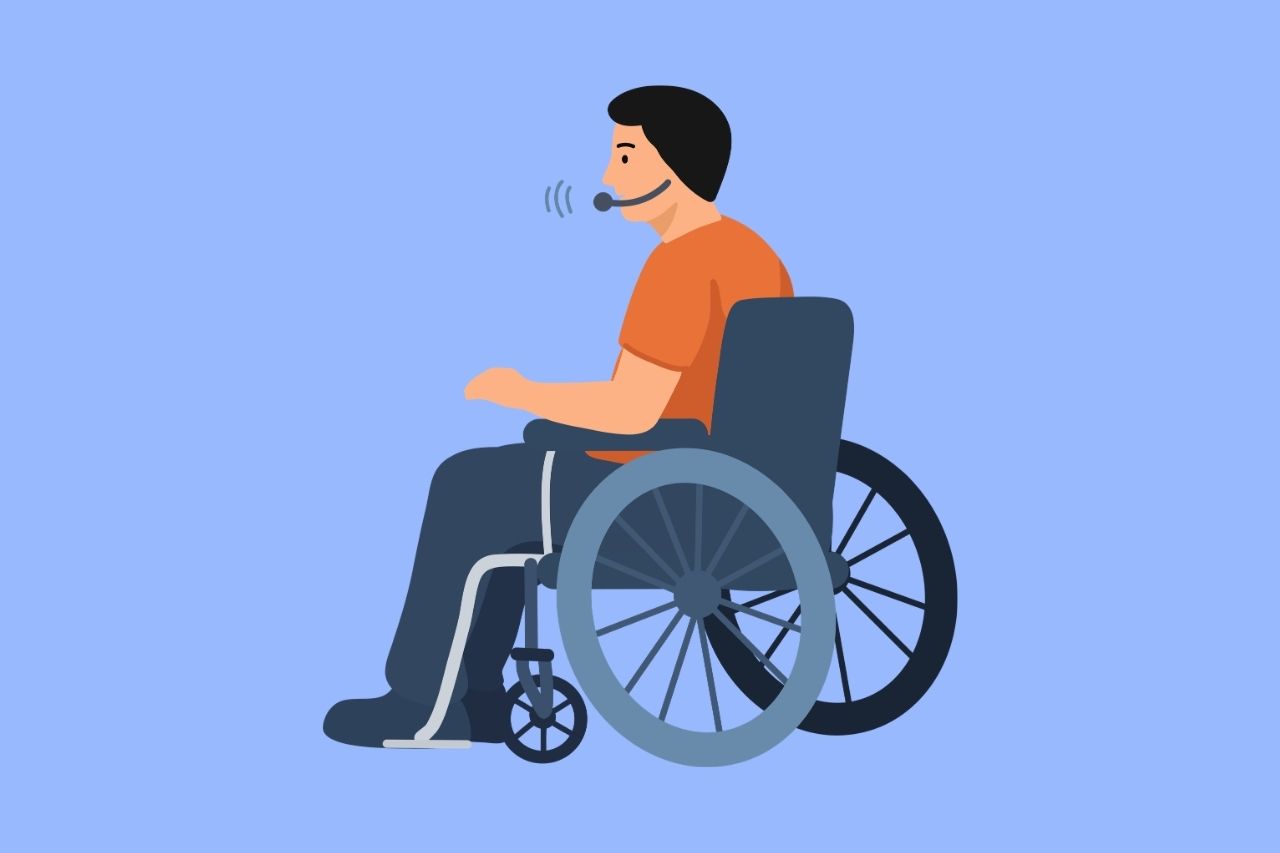
How Motor Disabilities Affect Website Use
Unlike cognitive disabilities that affect perception or comprehension, motor disabilities primarily affect physical interaction. Someone with a tremor may struggle to click a small button precisely. Someone with paralysis or limited hand function may rely entirely on a keyboard, a switch device, or voice commands rather than a mouse. Someone navigating with one hand may find multi-step gestures or simultaneous key presses impossible to complete, which is why button accessibility plays such a central role in making a site usable for this group.
This means accessible web design for motor disabilities isn’t about simplifying content; it’s about ensuring every interactive element can be operated without precise, fine-motor movement, and without requiring speed or dexterity a user may not have.
Common Accessibility Barriers on Websites
Most barriers for this group come down to interfaces designed around an assumed level of physical precision and speed that not every user has. A website built and tested primarily with a mouse in mind can look and function perfectly well to its designers while still being effectively unusable for someone relying on a different input method entirely. The barriers below are some of the most common and most fixable examples of this gap.
Small or Closely Spaced Click Targets
Buttons, links, and form controls that are too small or placed too close together are difficult to activate accurately for someone with limited fine motor control or a tremor, often resulting in the wrong element being triggered. This is one of the reasons link accessibility matters just as much as button accessibility when designing for this group. This is especially common in dense navigation menus, icon-only buttons, and mobile-style interfaces adapted for desktop use, where visual compactness is prioritized over the physical space needed to interact with each element reliably.
A single mis-click can mean submitting the wrong form, navigating to the wrong page, or triggering an action that has to be manually undone. For this reason, accessible navigation is just as important for this group as accurate click targets are.
Mouse-Only Interactions and Drag-and-Drop Elements
Features that only work with a mouse, such as drag-and-drop file uploads or hover-triggered menus, exclude users who navigate by keyboard, switch device, or voice control alone, since these input methods can’t replicate a mouse drag or hover action. Keyboard accessibility is central to solving this. When a drag-and-drop uploader has no button-based alternative, or a dropdown menu only appears on mouse hover with no keyboard-triggered equivalent, the feature isn’t just inconvenient. It becomes entirely inaccessible to anyone who can’t use a mouse.
This is one of the more overlooked barriers, since it often works flawlessly for the majority of users testing with a mouse and is never caught without deliberate keyboard-only testing.
Time-Limited Forms and Sessions
Forms or sessions that time out quickly assume every user can read, decide, and type at a typical pace. For someone using an alternative input method, such as a switch device, eye-tracking system, or voice control software, simply completing a field can take significantly longer than it would with a standard keyboard and mouse, and a short timeout can cut off the task before it’s finished. This is particularly frustrating on multi-step processes like checkout flows or account applications, where a timeout partway through can mean losing progress entirely and having to start over. Accessible forms account for this by giving users enough time to complete a field.
Missing or Invisible Keyboard Focus Indicators
When a website removes or hides the visual outline that shows which element is currently selected via keyboard, often done for aesthetic reasons during design, a keyboard-only user has no way to tell where they are on the page, making navigation effectively impossible even if the site is technically keyboard-operable. Without a visible focus indicator, a user might be several tabs deep into a form or menu with no way to confirm which field or button is currently active, turning what should be a straightforward navigation task into a frustrating guessing exercise.
Assistive Technologies and Communication Tools Used
People with motor disabilities rely on a range of alternative input methods, most of which are designed to work with or emulate a standard keyboard interface.
Alternative Keyboards and Switch Devices
Adaptive keyboards with larger keys or wider spacing, along with switch devices that register a single input like a button press or puff of air, allow users with limited hand mobility to interact with a website without needing a standard keyboard or mouse.
Eye-Tracking and Head-Pointer Systems
Eye-tracking technology allows a user to control a cursor with eye movement alone, while head-pointer systems use small head movements to achieve the same result, both offering a path to full website interaction for users with little or no hand or arm mobility.
Voice Control Software
Voice control software lets users navigate, click, and fill out forms using spoken commands instead of physical input, making a website’s compatibility with voice navigation an important consideration for this group.
Sip-and-Puff and Single-Switch Systems
Sip-and-puff devices interpret changes in air pressure as input signals, and single-switch systems pair with on-screen scanning menus, allowing users with the most limited physical movement to still navigate and interact with web content over time.
Relevant WCAG Success Criteria
Several WCAG success criteria directly support the barriers and assistive technologies described above:
- 2.1.1 Keyboard (Level A) requires that all functionality be operable through a keyboard interface, the foundation that alternative keyboards, switch devices, and voice control software all depend on.
- 2.4.7 Focus Visible (Level AA) requires a visible indicator showing which element currently has keyboard focus, directly addressing the focus indicator barrier described above.
- 2.2.1 Timing Adjustable (Level A) requires that users be able to turn off, adjust, or extend time limits, addressing the barrier created by forms and sessions that time out too quickly.
- 2.5.8 Target Size (Minimum) (Level AA) requires interactive elements to meet a minimum size and spacing, directly addressing the small or closely spaced click target barrier.
Meeting these criteria as part of WCAG 2.1 or 2.2 Level AA conformance is central to making a website genuinely usable through keyboard, switch, voice, or eye-tracking input, not just theoretically compatible with it.
Conclusion
Website accessibility for motor disabilities comes down to one core principle: every interaction a mouse can perform needs an equivalent that doesn’t require precise, fast, or simultaneous physical movement. Small fixes, such as larger click targets, visible focus indicators, adjustable time limits, and full keyboard operability, can make the difference between a site that’s usable and one that isn’t for this audience. A manual website accessibility audit that includes keyboard and switch testing is the most reliable way to find out where these gaps exist. Get a free accessibility audit quote to see what it will take to make your website fully operable for users with motor disabilities.

Contact Us
Please complete all fields.
Recent Posts
Website Accessibility for Auditory Disabilities
Deafness and hearing loss affect how people access content delivered through sound, but the experience varies. Someone in the Deaf community may communicate primarily in American Sign Language, a distinct language with its own grammar, not a signed version of English. Someone who is hard of hearing may rely more […]
Website Accessibility for Motor Disabilities
Motor disabilities affect a person’s ability to control or coordinate physical movement, and they take many forms, including limited mobility, tremor, paralysis, and reduced use of one hand or side of the body. These conditions can be present from birth or result from injury, illness, or age-related changes. What they […]
21st Century Communications and Video Accessibility Act (CVAA)
The 21st Century Communications and Video Accessibility Act, signed into law on October 8, 2010, updates federal communications law to ensure people with disabilities have equal access to modern communications technologies and video programming. Unlike the ADA, which is enforced by the Department of Justice, the CVAA is enforced by […]